


Step-by-Step Guide: Purchasing the Course from Your Dashboard #
1 – Log In to Your Account #
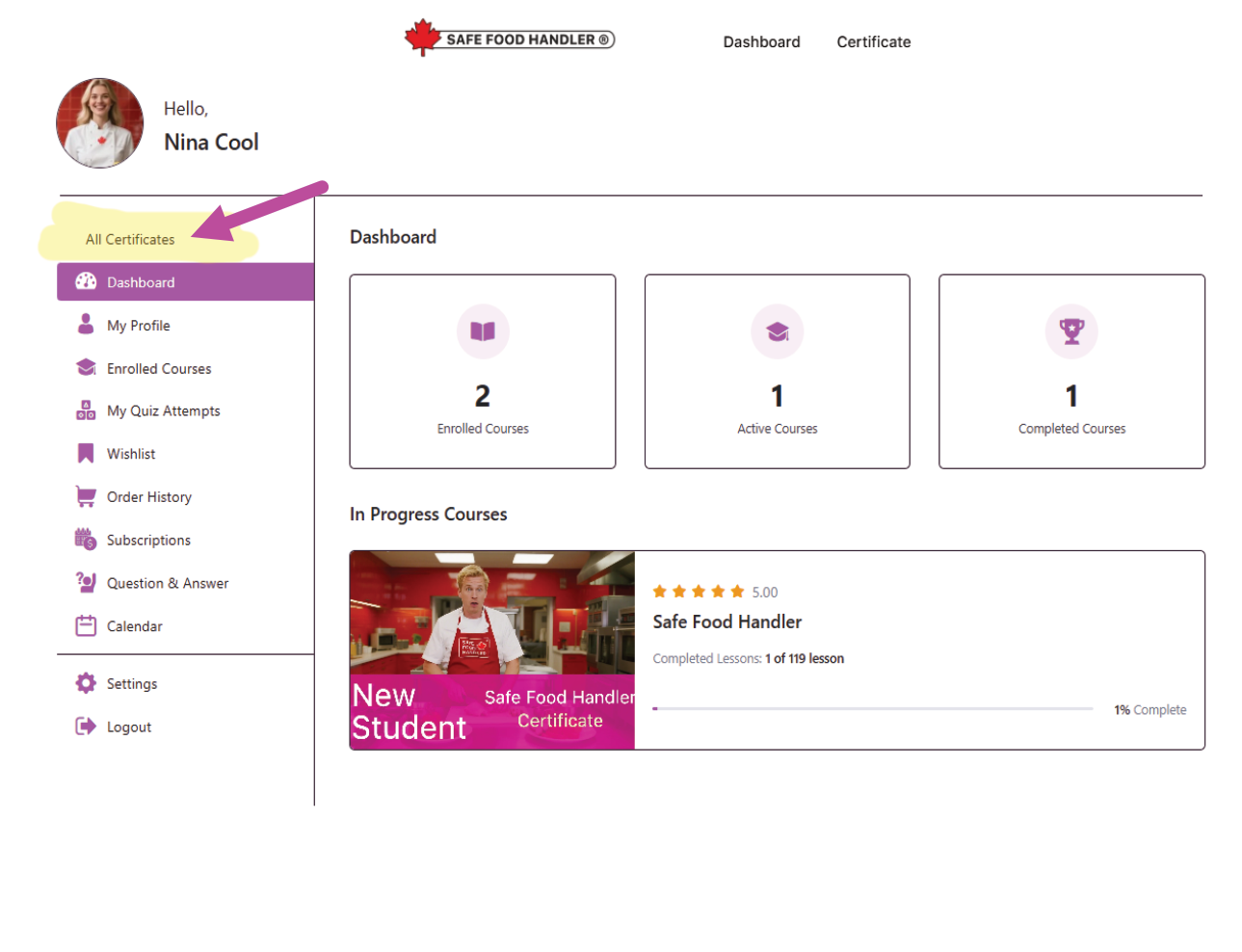
After email confirmation, go to https://safefoodhandler.ca and log in using your username/email and password. You’ll be directed to your Dashboard.
2 – Navigate to All Certificates #
On the left sidebar menu, click “All Certificates” (highlighted in yellow in the interface).
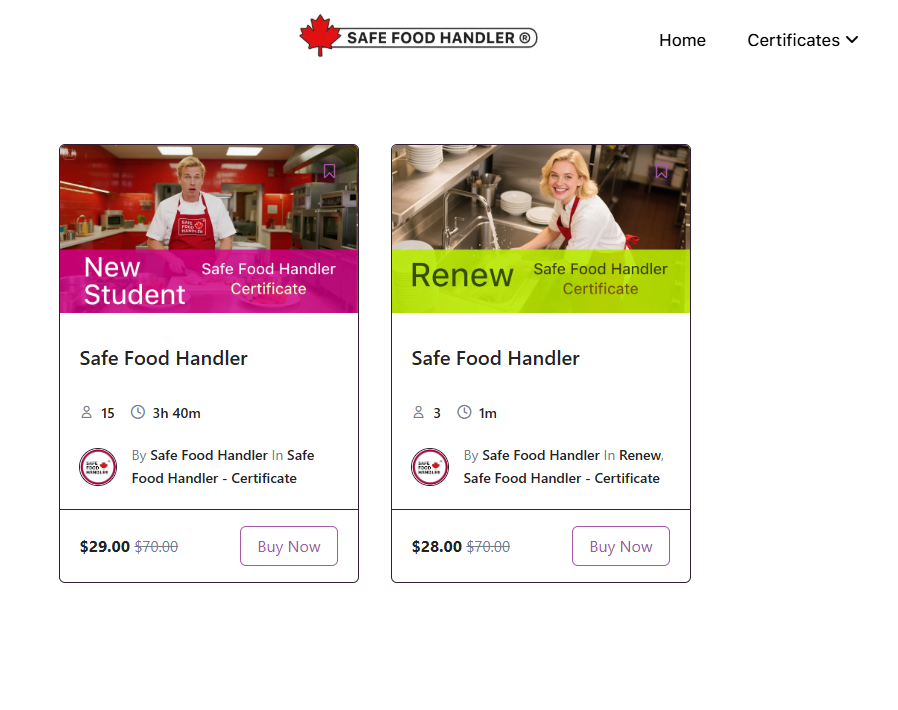
This section displays available certificate options, including:
This section displays available certificate options, including:
3 – Select and Purchase Your Certificate #
Choose the appropriate option:
- Click “Buy Now” on the New Student card if you’re starting fresh.
-
This takes you to the Checkout page.
4 – Complete the Checkout Process #
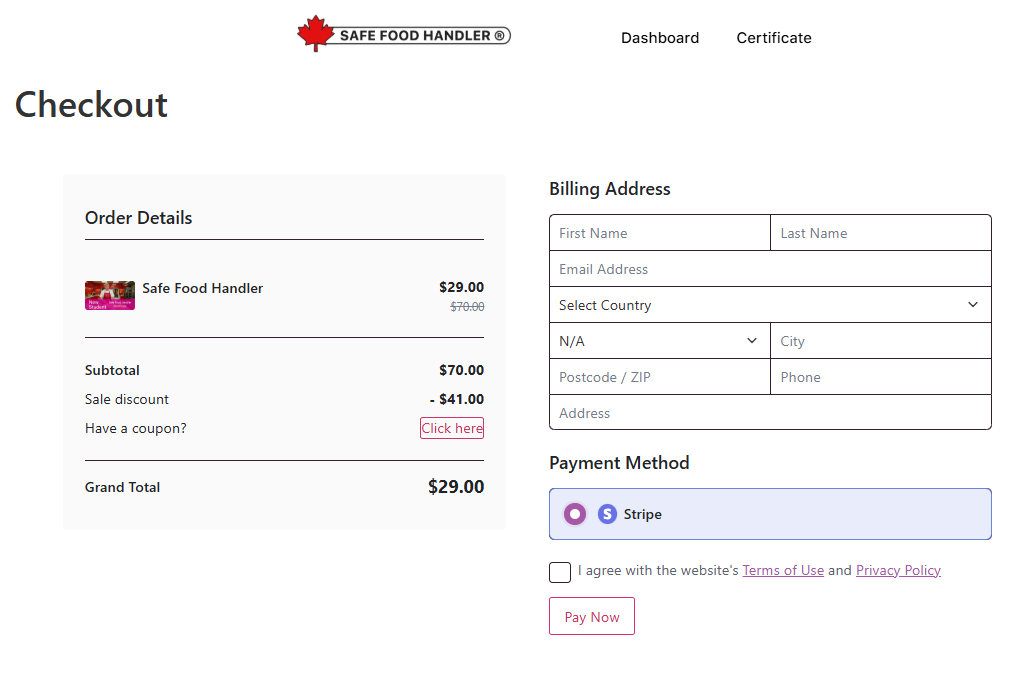
On the checkout screen:
- Review Order Details (shows the selected certificate, subtotal, any discounts applied automatically, and grand total — e.g., $29.00 after sale discount).
- Enter or confirm Billing Address details (First/Last Name, Email, Country, City, Postcode/ZIP, Phone, Address). Some fields may be pre-filled from registration.
- If you have a coupon code, click “Have a coupon? Click here” to apply it.
- Select Payment Method (usually Stripe as the processor).
- Agree to the Terms of Use and Privacy Policy.
- Click “Pay Now” (or similar blue button) to proceed to secure payment.
5 – Make Payment #
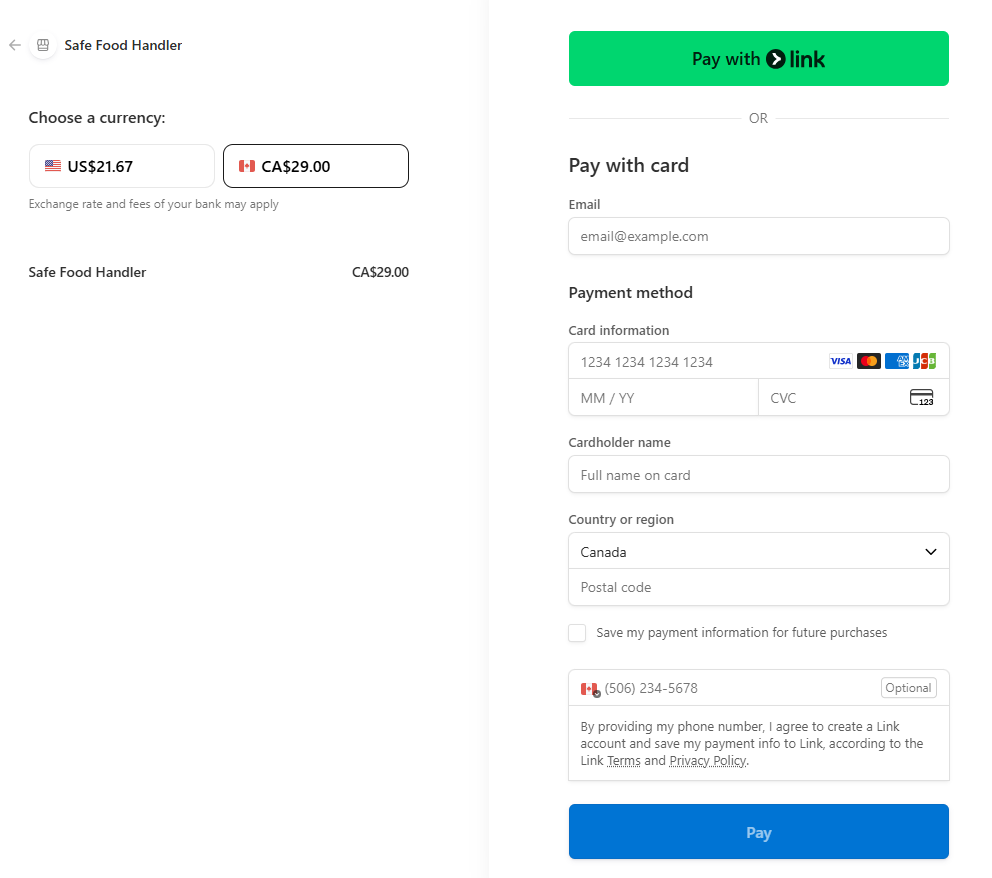
You’ll be redirected to a secure payment gateway (powered by Stripe/Link):
- Choose currency (e.g., CA$29.00 or equivalent US$21.67, depending on your location — note exchange rates/fees may apply).
- Enter card details (Visa, Mastercard, etc.), cardholder name, expiry, CVC.
- Provide country/region, postal code, and optional phone number.
- Option to save payment info for future purchases (check the box if desired).
- Agree to Link’s Terms and Privacy Policy if using that option.
- Click “Pay Now” to complete the transaction.
6 – Access Your Course Immediately #
Once payment is confirmed (instant), return to your dashboard.
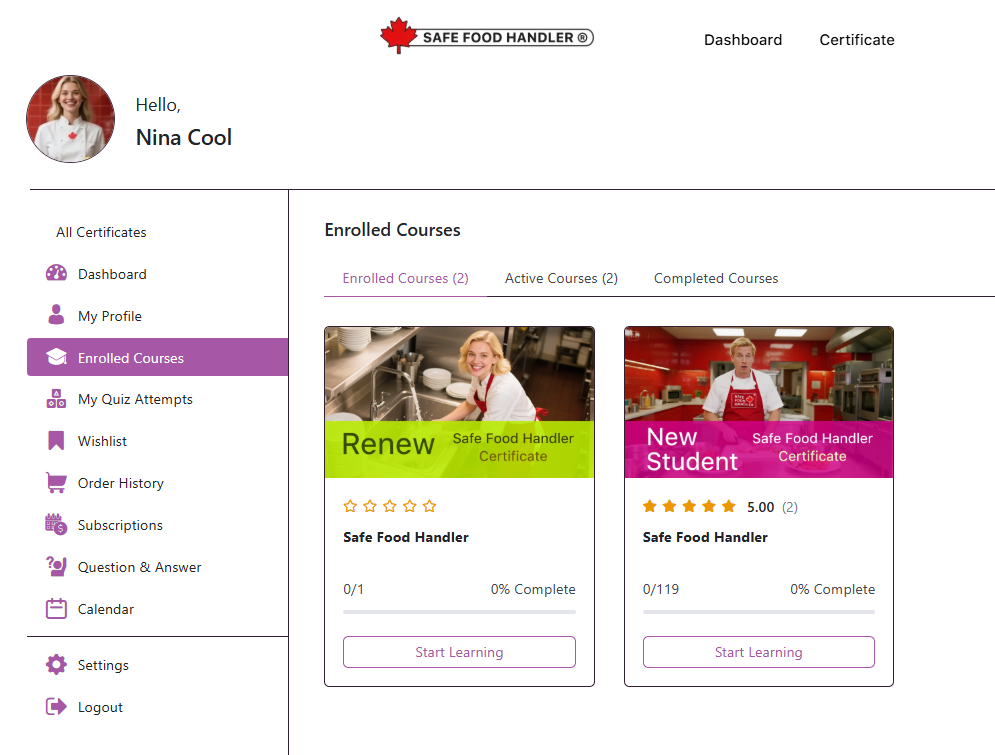
- Go to “Enrolled Courses” (or “All Certificates”) in the sidebar.
- Your purchased certificate will appear as an active/enrolled course (e.g., with progress bar at 0% or 1%).
- Click “Start Learning” to begin the interactive modules (119 lessons for the full course).
- Track progress, take quizzes, and complete the final exam at your own pace (within 30 days, extensions available via support if needed).
Note #
- Support — If you encounter issues during purchase or access, use the site’s help/contact form or email support.
- After Completion — Pass the exam to receive your official certificate (with QR code) via email within 24 hours, plus a printable PDF.


